IMPORTANT -
TERMS & CONDITIONS
This is a NO SUPPORT - Personal Edition Pack.
The Full Commercial version of Horoscope Explorer retails at $299.
This is a special NO SUPPORT PERSONAL EDITION with a sharply reduced price tag.
To avail the special price tag on this software, you must agree to the
following terms and conditions.
No Support
Horoscope Explorer can be easily installed and used by moderately skilled
computer users. This cut price version does not carry any support or
assistance. If you ask for support you must pay the price of the FULL
COMMERCIAL PACK of Horoscope Explorer which is $299.
No Commercial Use
You will not use Horoscope Explorer commercially, i.e. you will not
generate and sell Horoscopes, any chart or predictions from Horoscope Explorer.
You can only use this software non-commercially for personal use.
Limited Liability
In case of any problem, or inaccuracy, or conflict our liability is limited
only to the amount paid by you to purchase the software.
Please use this software only if you agree to these terms and conditions. If you do not agree to the terms and conditions, you must return the complete pack of this software back to the vendor you puchased it from to get a refund of your amount.
Click on a topic below to see help on it.
- Package Contents
- Installing Horoscope Explorer
- Features
- Generate Horoscopes, Marriage Match or Varsha Phala
- How to change Ayanamsha
- How to Change Kundli Style
- Mean & True Motions of Rahu & Ketu
- Making Horoscopes of People born outside India.
- Print your details on the cover page.
- How to change Horoscope colours
- How to Change Languages
- How to Save/Modify A Person's Details
- Copying Person's Data To a File & Retrieving Data
- How to Navigate Between Topics.
- About The Setup Wizard
- PDF & HTML Export
- Using Planetary Transits
Trouble Shooting
- If Text in Local languages is not displayed properly and or Ganesha logo does not appear.
- Horoscope Explorer Gives Wrong Results
Miscllaneous
Package contents
The Horoscope Explorer Pack should contain the following.
- Horoscope Explorer Installation CD - This is the CD you will use to install Horoscope Explorer on your computer.
- Horoscope Explorer Key CD - This CD has to be present in your CD Drive for the software to run. Without it, Horoscope Explorer will not function.
- User Registration Card - Please fill in the user registration card and send it immediately to us. This will inform us that you have purchased our product. Registration is necessary to get customer support, and special offers on our entire product range.
If anything from the above list is missing in your pack, please immediately return it to the dealer you purchased it from, and get an exchange. If you're not able to exchange the software for some reason, please immediately inform us so that we can help you take corrective action. Our Email is psl@nde.vsnl.net.in.
Follow the instructions below to install Horoscope Explorer on your computer.
Insert Installation CD in
Drive & Run Setup
Insert the CD marked Installation CD into your CD Drive.
Run Setup.Exe from the CD.
Run Setup.exe from the CD Drive to start copying Horoscope Explorer to
your hard drive. You can run Setup either by using the Windows Explorer or
using the 'Run' command in the Start menu.
- If you use the Run command type 'X:\Setup.exe' (Where 'X' is your CD Drive letter - mostly 'D') and press enter.
-
If you use the Windows Explorer,
click on your CD Drive, and then on the Setup icon.(Shown below).

This will run the setup of Horoscope Explorer.
Setting up Horoscope Explorer
On running Setup.exe you will
see the following screen.
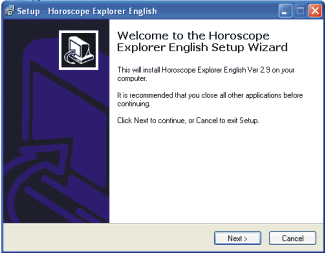
This screen welcomes you to the Setup Program, and gives you information on how to install the software. Press 'Next' to continue running setup.
Choosing Setup Directory
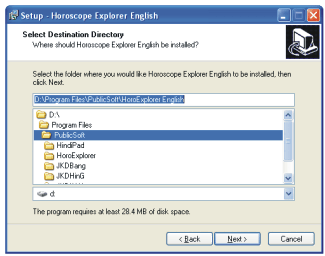
The next screen of the Setup program allows you to change the
directory where Horoscope Explorer will be installed. It's recommended that you
do not change this directory as all future upgrades and Patches for this
software will be installed in the same directory. If you however you do change
it, remember what directory you installed the software to. You will need it
later when you add new languages or install upgrades. The 'Select Directory'
screen looks like this.
Selecting Start Menu Folder
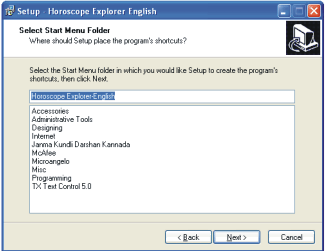
At this step you will be asked to select the Folder under which the shortcut
icon to Horoscope Explorer will be created in the Start Menu. You should leave
this to the default, as all future patches and upgrades will attempt to
create/modify icons in this folder only. If you change the folder name here,
the Horoscope Explorer icons will be created in the new folder you select or
provide. This screens will look like the following image.
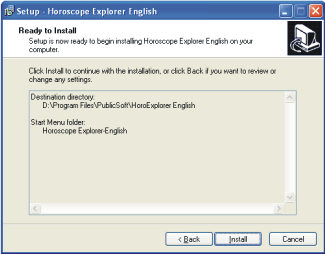
Ready to Install
At this stage you will have provided Horoscope Explorer all the information it
needs to install the software, and on clicking 'Install' the Setup program will
start copying the software to your hard drive.
Finishing Installation
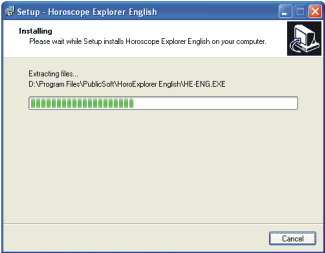
The software will now automatically copy all files and peform all functions
needed to get your copy of Janma Kundli Darashan running on your computer.
During this time the Setup program will show you a progress bar that will tell
you how much of the process is complete. The installation screen looks like
this.
If for some reason the software does not complete successfully it will show you an error. Please note down the error text and Number if displayed. Please contact us along with your registration information and the error text and we will help you find a solution.
Horoscope.
 General Details
Lagna Kundli
Planetary Positions
Shodashvarga
Kundlis
Lagna Kundli
Hora Kundli
Drekkana Kundli
Chaturthamsha
Kundli
Saptamamsha
Kundli
Navamamsha
Kundli
Dashamamsha
Kundli
Dwadashamamsha
Kundli
Shodashamsha
Kundli
Vimshamsha
Kundli
Chaturvimshamsha Kundli
Saptavimshamsha
Kundli
Trimshamsha
Kundli
Khavedamsha
Kundli
Akshavedamsha
Kundli
Shashtiamsha
Kundli
Bhav Table
Bhav Chalit
Chakra
Sun Based
Upagrahas
Day Based
Upagrahas(both Parashara & Kalidasa paddati)
Bhinna Ashtak
Varga charts for all planets.
Ashtak Varga
Total
Ashtakvarga
Shodhan
Planet Maitri
Chakra (Permanent, Temporal & Panchadha)
Sudarshan
Chakra
Planet Karakas
(3 groups)
Planetary
Avasthas (6 groups)
Nav Tara Chakra
Planetary
Aspects Table
Plant drishti
Table
Shani Sade
Saati Table
Shadbala
Vimshottari Dasha (Mahadasha)
Vimshottari
Pratyantara Dasha (For the running period)
Tribhagi Dasha
Yogini Dasha Shat
Trimsha Dasha
Predictions for
200+ Planetary yogas
Results of
planetary aspects
Predictions
based on the chart.
Nakshatra based
predictions
Predicitions on
Houses
Predictions of
placement of planets in houses.
Varshaphala
Varsha Kundli
Birth Lagna
Kundli
Muntha Sign
Muntha House
Varsheshwar
Planetary
Positions Chart
Patyayini Dasha
Mudda Yogini
Dasha
Mudda
Vimshottari Dasha
Panch vargiya
Planet Bala
Dwadashvargiya
Planet Bala
Harsha
BalaNavamsh Kundli
Sun Base
upagrahas
Tripataki
Charka
36 Sahams
Dasha based
predictions.
Marriage Match Making
General Details
Boy &
Girl's Planetary Positions Chart
Boy's Lagna
Kundli
Girl's Lagna
Kundli
Guna Match
Table
Manglik
Analysis
Guna Score
Analysis.
Exclusive Features
Easy to use - Fill in birth details like date, time and place in given fields
and press generate to make the horoscope. Windows based visual graphical
interface makes it easy to learn and use the software.
Compatible with all printers - Compatible with all Windows based printers
including Laser, Inkjet and Dotmatrix.
Flexible -
Change a few options to select different kinds of kundli styles, ayanamshes or
make other modifications to the horoscope.
Comprehensive -
Has almost every thing an astrologer will need to give predictions for a
native.
Upgradable - An
option to upgrade to the future versions of the software for a very reasonable
price.
HTML Export - Save the horoscope in HTML Format.
PDF Export -
Save the horoscope in PDF format.
Send PDF Email
as an attachement in local languages.
Take Colour
printouts of the horoscopes.
Choice between Lahiri (Chitapakshiya), KP, BV Raman ans Sayan Longitudes.
Choice between True and Mean motion of Rahu & Ketu.
Generate
Horoscopes for People born outside India.
Copy Janma
Kundli Details to a file and take to any computer with Horoscope Explorer.
Print any page
or make pre-defined modules to print the pages you want.
Make horoscopes
with special customisation for Northern, Eastern and Southern India. Janma
Kundli Automatically decides what settings are appropriate depending on what
region you select.
Horoscope Explorer needs the following information to generate the horoscopes of the person.
- Name
- Date of birth
- Time of Birth
- Place of birth (Longitude & Latitude)
To generate horoscope, feed this information in the apprporiate fields in the following screen.
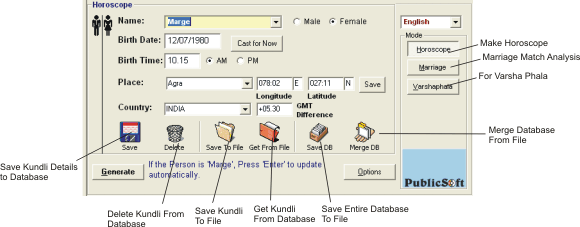
When you have finished filling in the details, Click 'Generate' to make the horoscope.
Similarly when you want to generate 'Marriage Match Making' data or 'Varshaphala' then click on that buton in the 'Mode' group. The screen displayed on your monitor will change according to the mode you have selected.
Horoscope Explorer attempts to feel natural and be easy to use at every stage. On the bottom of the data screen you will find helpful information that will tell you what each button does. Read it to make yourself familiar with the interface and the features in Horoscope Explorer.
Ayanamsha is a special value deducted from the real planetary longitudes. There are several different Ayanamsha values recommended by different astrologers. Horoscope Explorer gives you the option to select from the following Ayanamshas.
- Lahiri (Also called Chitrapakshiya Ayanamsha) - This ayanamsha is popular all over northern India and is a standard here. If you are located in the north you should use this Ayanamsha.
- KP (Krishnamurthy Ayanamsha) - Krishnamurty or KP Ayanamsha is only slightly different from Lahiri Ayanamsha and is popular with researchers and professional astrologers.
- BV Raman - Ayanamsha value developed by popular astrologer BV Raman is popular in sourthern Indian states. You can use this value if you are located in western India.
- Sayan - Sayan or with ayanamsha. In this mode there is no deduction of Ayanamasha from the planetary longitudes. This is used for the western system of astrology.
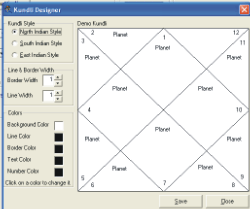
The physical style of the kundli differs in the northern, southern and the eastern part of India. Users can select the kundli style they want by the following method.
- Click on the 'Settings' menu.
- Click on the 'Kundli Style' command. This will bring up the kundli designer.
- Select the list of the Kundli Styles located on the top right corner of the screen. Your options are North Indian Style, South Indian Style or East Indian Style.
- Click on the 'Save' button.
- Click 'Close' to close the kundli designer.
How to select Mean/True motion for Rahu & Ketu
Traditionally Astrologers use Mean positions of Rahu & Ketu. However, there is an increasing trend of using the True positions of the planetary nodes in modern day astrologers. There is a very slight difference between the mean and true positions, ranging from a couple of seconds to a few minutes.
To change Rahu & Ketu motion calculation:
- Click on the 'Settings' menu.
- Click on the Rahu & Ketu's Motion' command. A dialog box will appear.
- Click on either True or Mean depending on the formula you want.
- Click on the 'Save' button.
- Click 'Close' to close the dialog box.
Generate horoscopes for people born outside India.
To generate horoscopes of people born outside India, Horoscope Explorer needs the following details.
- GMT Time difference of that country. (Ex. for India it's 5.30 hours)
- The longitude and lattitude of the city where the individual was born.
Details
To generate the horoscopes for people born outside India, one must have that
country's Time difference from GMT (Greenwich Mean Time), for e.g. the
difference of Indian time from GMT is 5.30 hours.
The major countries of the world are already fed into the software, and the user can automatically access the GMT Difference for most countries by clicking on it's name in the list. If the Time difference is not provided for a country, the User must manually enter it's name and the time difference.
The city database contains the longitude and latitudes of most Indian towns. However the user must enter the longitudes of cities located outside Indian manually. To find out the longitudes you can buy a standard Atlas for the country, and refer to the list usually located in the end of the Atlas.
To generate the horoscope for a foreign born Native, fill in the country GMT Difference details, the longitude and the latitude and press Generate. If any of these details are not filled correctly, the generated horoscope will not be accurate.
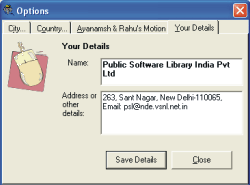
How to print your details on the cover page.
Professional astrologers can print the name of their astrology centres on the front page of the generated horoscope.
To set your details for printing, follow the instructions given below.
- Click on the 'Settings' Menu.
- Click on the 'Your Details' command.
- Fill in your name in the 'Name' field and your contact details in the 'Addres' Field.
- Click 'Save' button to save this information.
- Click close to hide the dialog box.
How to change colours
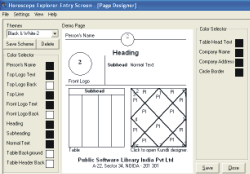
If you've got a colour printer, you might wish to take colour printouts of the horoscope. This software allows you to take colour printouts easily and make a colour scheme of your own choice.
To change colours:
- Click on the 'Settings' Menu.
- Click on the 'Page Designer' Command, to bring up the colour settings dialog where each item of the page is listed along with it's colour in the horoscope.
- Click on the colour swatch on the side of each item and choose the colour you want.
- To change the colours of the kundli, click on it to open the kundli designer.
-
Click OK to close the colour
dialog and come back to the page designer dialog.
When you are finished with colour selection click Save to save the current colour scheme.
Tip: Users can save the colour schemes they make by typing in a name for the scheme in the box given on the top left corner of the dialog and pressing the button 'Save Scheme'. At a later point users can easily access that scheme by selecting it's name in the dialog.
How to change languages
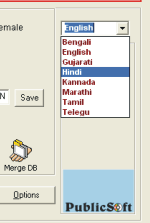
Depending on the version of Horoscope Explorer you bought, you might get the facility to generate horoscopes in more than one languages. You can change the language by selecting it from the Language drop down box on the Login screen.
How To save/modify a person's details.
You can save a person's details in the software and easily access them later by clicking on his/her name in the name list box.
To save modify a person's details.
- Enter his/her name in the names listbox in the Entry Screen.
- Enter all the birth particulars in the appropriate fields.
- Click the 'Save Person' button.
Tip: Saving the details of a person is a good idea, because the next time you want the details of that person you can simply select his name from the list.
Copying a person's data to a file & retrieving data from file
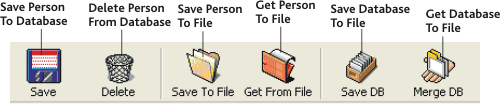
You can save the birth details of a person to a file and take it to another computer where Horoscope Explorer is installed. This will allow you to transport data between computers instead of filling it in each time.
You can also save the entire databse of people stored in Horoscope Explorer and use it with Horoscope Explorer on any computer.
To save the details of a single person, select the person, and click on 'Save To File' button in the Login screen. Horoscope Explorer will ask you to assign a file name and will save the Kundli to the file name you select.
To save the Entire database of people, click on 'Save DB'.
You can import the details of a person by using the 'Get From File' button when you are ready to retrieve the person's details. If you want to import the entire databse, click on 'Merge DB' and Horoscope Explorer will add the contents of the databse file to the existing records.
How to navigate between topics.
Navigating between topics is easy and very flexible. Users can choose from the variety of the navigation methods available and use the one they like.
To navigate between the previous and next topic
- Press CTRL+N for Next Topic.
- Press CTRL+L for Last Topic.
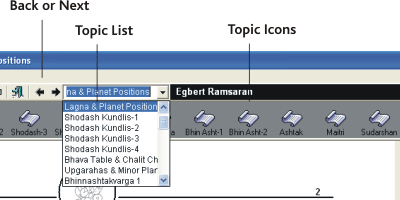
- Click on the Next Arrow (pointing left) of the toolbar for next topic.
- Click on Previous Arrow (pointing right) of the toolbar for last topic.
To navigate to a specific topic.
- Select the Topic from the Topics List on the Top toolbar.
- Select the Topic from the side Topic List.
- Click on the Topic in the Navigate Menu.
About the setup wizard
The Setup wizard runs only once when you install the software to help you set up the settings in Horoscope Explorer. It will present a list of different settings and what each setting does. You can select the setting you prefer according to your requirements or region.
If you ever want to change the settings you've made you can either do this through the 'Settings' menu. You can also run Setup Wizard any time you want by clicking on 'Setup Wizard' in Settings menu.
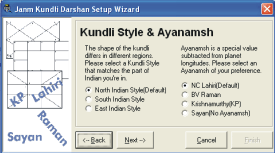
Setup wizard screen
PDF export
The new version of Horoscope Explorer also allows you to save the horoscope in PDF format. You can even email the horoscopes directly from the software in PDF format anywhere around the world in your local language.
To export to PDF format, click on the PDF export icon on the toolbar and select a filename. Horoscope Explorer will export the entire horoscope to the file which you can then open in Adobe Acrobat. You can even export Horoscopes in Regional languages to PDF documents.
To view the horoscope you will need Adobe Acrobat Reader. Adobe Acrobat Reader is available for free download from the Internet. You can look on Adobe's site or search for it on www.google.com.
It's recommended that you use the PDF export feature instead of HTML horoscope most.
Icons on toolbar
 |
To Export to PDF File. |
 |
To send PDF File in Email. |
Using planetary transits
Planetary Transits let an astrologer study the movement of the planets, and can also be used to ascertain the position of the planets in the zodiac at any given moment. Transits are also used to judge the effects of planetary movement in a person's chart.
Horoscope Explorer has the facility to see animated transits in a zodiac, letting you view the movement of the planets as it happens. You can view transits by clicking on the 'View transits' button the toolbar. From the transits window you will also be able to change the speed of the movement, and view movement according to minute, hour, day, year, etc.
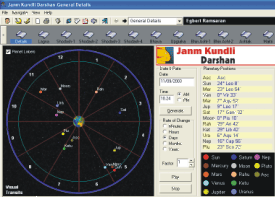
The transits screen.
If text is not displayed properly, or Ganesha logo does not appear.
Local language text may appear as garbage if the correct font is not installed. Similarly if the font 'Kruti Astro' is not installed, the symbols used in the software will not appear correctly.
All the fonts used in Horoscope Explorer are provided in the 'Fonts' directory of the CD-Rom. If the setup is not able to install the fonts, you may have to install them manually.
To install the fonts manually on your computer, insert the 'Installation CD' in your CD Drive. Now go into the 'Fonts' directory of the Installation CD and copy all the fonts in this directory to your Windows\Fonts folder (on most computers its 'C:\WINDOWS\FONTS).
When you've completed installing, restart your comp and run Horoscope Explorer again. It should run correctly now.
Horoscope Explorer gives wrong planetary positons
Horoscope Explorer has been tested by experts and delivers the most accurate results when it comes to planetary positions. It has been in the market for a long time, and enjoys the patronage of thousands of users. There are hardly any chances that Horoscope Explorer will display wrong results.
However if you the results are inaccurate, they may be due to any of the following reasons.
-
Wrong Ayanamsha Choosen
Horoscope Explorer gives you the option to choose between Lahiri (Chitrapakshiya), BV Raman, KP and Sayan Ayanamshas. The Ayanamsh value changes the planetary longitudes, and should be selected carefully. Here are the recommended Ayanamshas.
North India - Lahiri
South India - KP or Raman
Sayan is the planetary longitude without any Ayanamsha deductionm and is not generally used.
-
Wrong Longitude/Latitude
The planetary values are modified according to the longitude and the latitude of the birth place. If you fill in wrong details in longitude and latitudes, you may get wrong results. Here's what you should check.
- Longitudes and Latitudes are not zero. If the city you fill in is not in the database, Horoscope Explorer will initialize the longitude and the latitude of the place to zero. Make sure the values are not zero, and if they're zero, please find the correct longitude and latitude and fill them in.
- Wrong GMT Time Difference - If you are generating the horoscope for foreign born individual, please check that the GMT time difference of the country is fed accurately. Horoscope Explorer may give wrong results if this detail is not accurate.
License & other information
Exclusively marketed by Public Software Library India Pvt Ltd
By purchasing this software, you have acquired a single use, non-transferable license to use Horoscope Explorer.
This program may be copied for backup purposes only in support of your use of the program on your PC, you are not allowed to make more than one backup of the software. You may not use, copy, modify, or transfer the program, or any copy, modification or merged portion of the program, in whole or in part, except as expressly provided for in this license. If you transfer possession of any copy, modification or merged portion of the program to another party, your license will be automatically terminated. Any breach of this contract will be considered an offence under the copyright law and will attract severe penalties under the Indian and international Copyright laws.
Disclaimer
Public Software Library India Pvt Ltd and the developer have taken pains to ensure that the software is made to the guidelines set in the ancient Indian Astrological Scriptures. However Astrology is a dynamic field and views will differ from region to region and person to person. Public Software Library India Pvt Ltd makes no warranty to the accuracy or suitability of these charts, calculations and predictions or their use for a particular purpose. Users should not take the predictions as conclusive or binding, it is solely the users liability if he follows any course of action advised in this software. In no case will Public Software Library India Pvt Ltd or any of its associates will be responsible for the user's actions or faith.
Credits
Public Software thanks all those who played a role in the creation of Horoscope Explorer. The software could not have been possible without the hard work and the support of all these individuals.
M S Gupta, Cyril M Gupta, Cecil Gupta, Ashok, Harish Thakkar, Manisha Verma, Mohan Iyyer, PS Srinivasan, S Bhuvaneshvari, Jayashree, Roma Chakraborti, Madhu Raman, R Kamala Devi, Jayprakash Bengare, Satish Kulavoor, Suhas Giri, Maya, Ekta, BV Singh.
Numerous other people have played a big role and helped in improving Horoscope Explorer by giving us suggestions and other small services. Thank you for your contribution all those of you who helped create this product.
Contact us
Send us your comments and feedback.

Public Software Library India Pvt Ltd
Email: psl@nde.vsnl.net.in
www.itbix.com
Address: 403, Madhuban Building, Nehru place
New Delhi-110019, India
Ph: 91-11-26227314, 91-11-26486289