Clear a paper jam
Clear a paper jam from the paper path.
To clear a paper jam from paper path
-
Open the cartridge access door.

-
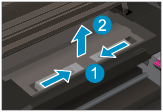
Remove the cleanout.
-
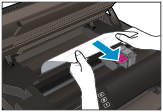
Remove the jammed paper from the rear roller.
-
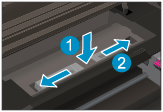
Place the cleanout back.
-
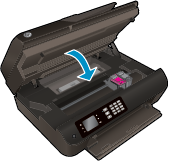
Close the cartridge access door.
-
Press the OK button on the control panel to continue the current job.
Clear a paper jam from the duplexer.
To clear a paper jam from duplexer
-
Open the cartridge access door.
-
Remove the cleanout.
-
Press on the hole of the duplexer path cover to lift it up. Remove the jammed paper.
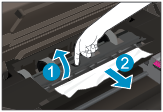
-
Place the cleanout back.
-
Close the cartridge access door.
-
Press the OK button on the control panel to continue the current job.
Clear a paper jam from the print zone.
To clear a paper jam from print zone
-
Open the cartridge access door.
-
Remove the jammed paper from inside the printer.
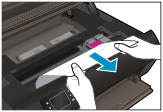
-
Close the cartridge access door.
-
Press the OK button on the control panel to continue the current job.
Clear a jam in the automatic document feeder
To clear a jam in the automatic document feeder
-
Lift the cover of the ADF.
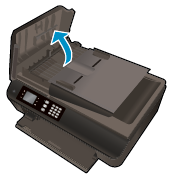
-
Lift the tab located on the front edge of the ADF.
-
Gently pull the paper out of the rollers.
Caution
If the paper tears when you are removing it from the rollers, check the rollers and wheels for torn pieces of paper that might remain inside the printer. If you do not remove all the pieces of paper from the printer, more paper jams are likely to occur.
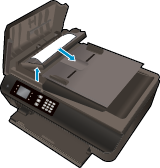
-
Close the cover of the ADF, pressing down firmly until it snaps into place.
-
Press the OK button on the control panel to continue the current job.
If the above solutions do not resolve the problem, click here for more online troubleshooting.
To prevent paper jams
-
Do not overfill the paper tray.
-
Remove printed papers from the paper tray frequently.
-
Ensure that paper loaded in the paper tray lays flat and the edges are not bent or torn.
-
Do not combine different paper types and paper sizes in the paper tray; the entire stack of paper in the paper tray must be the same size and type.
-
Adjust the paper-width guides in the paper tray to fit snugly against all paper. Make sure the paper-width guides do not bend the paper in the paper tray.
-
Do not force the paper too far forward in the paper tray.
-
Do not add paper while the printer is printing. If the printer is about to run out of paper, wait until the out of paper message appears before adding paper.
If the above solutions do not resolve the problem, click here for more online troubleshooting.