Resolve ink cartridge problem
First try removing and reinserting the cartridges. If this does not work, clean the cartridge contacts. If your problem is still not resolved, see Replace the cartridges for more information.
To clean the ink cartridge contacts
Caution
The cleaning procedure should take only a few minutes. Make sure that the ink cartridges are reinstalled in the printer as soon as possible. It is not recommended to leave the ink cartridges outside of the printer longer than 30 minutes. This could result in damage to the printhead or the ink cartridges.
-
Check that power is on.
-
Open the cartridge access door.

Wait for the print carriage to move to the right side of the printer.
-
Remove the cartridge indicated in the error message.
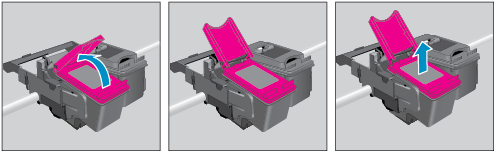
-
Hold the ink cartridge by its sides with the bottom pointing up and locate the electrical contacts on the ink cartridge. The electrical contacts are the small gold-colored dots on the cartridge.

-
Wipe only the contacts with a dry swab or lint-free cloth.
Caution
Be careful to wipe only the contacts, and do not smear any of the ink or other debris elsewhere on the cartridge.
-
On the inside of the printer, locate the contacts in the printhead. The contacts look like a set of gold-colored bumps positioned to meet the contacts on the ink cartridge.
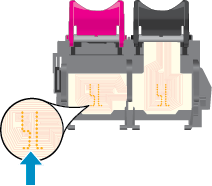
-
Use a dry swab or lint-free cloth to wipe the contacts.
-
Reinstall the ink cartridge.
-
Close the cartridge access door, and check if the error message has gone away.
-
If you still receive the error message, turn the printer off, and then on again.
Note
If one ink cartridge is causing problems, you can remove it and use the single-cartridge mode to operate the HP Officejet 4630 series with only one cartridge.
