Case K: Shared voice/fax line with computer dial-up modem and voice mail
If you receive both voice calls and fax calls at the same phone number, use a computer dial-up modem on the same phone line, and subscribe to a voice mail service through your telephone company, set up the printer as described in this section.
Note
You cannot receive faxes automatically if you have a voice mail service at the same phone number you use for fax calls. You must receive faxes manually; this means you must be available to respond in person to incoming fax calls. If you want to receive faxes automatically instead, contact your telephone company to subscribe to a distinctive ring service, or to obtain a separate phone line for faxing.
Since your computer dial-up modem shares the phone line with the printer, you cannot use both your modem and the printer simultaneously. For example, you cannot use the printer for faxing if you are using your computer dial-up modem to send an email or access the Internet.
There are two different ways to set up the printer with your computer based on the number of phone ports on your computer. Before you begin, check your computer to see if it has one or two phone ports.
-
If your computer has only one phone port, you need to purchase a parallel splitter (also called a coupler), as shown in the illustration. (A parallel splitter has one RJ-11 port on the front and two RJ-11 ports on the back. Do not use a two-line phone splitter, a serial splitter, or a parallel splitter which has two RJ-11 ports on the front and a plug on the back.)
Example of a parallel splitter

-
If your country/region is listed in the table, you probably have a parallel-type telephone system. In a parallel-type phone system, you are able to connect shared telephone equipment to the phone line by using the "2-EXT" port on the back of the printer.
Back view of the printer
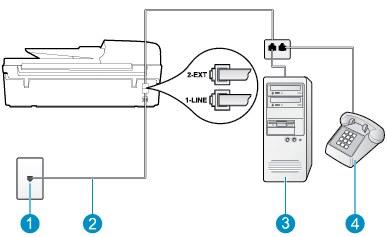
1
Telephone wall jack
2
Use the phone cord supplied in the box with the printer to connect to the 1-LINE port.
You might need to connect the supplied phone cord to the adapter provided for your country/region.
3
Computer with modem
4
Telephone
To set up the printer on the same phone line as a computer with two phone ports
-
Remove the white plug from the port labeled 2-EXT on the back of the printer.
-
Find the phone cord that connects from the back of your computer (your computer dial-up modem) to a telephone wall jack. Disconnect the cord from the telephone wall jack and plug it into the port labeled 2-EXT on the back of the printer.
-
Connect a phone to the "OUT" port on the back of your computer dial-up modem.
-
Using the phone cord supplied in the box with the printer, connect one end to your telephone wall jack, then connect the other end to the port labeled 1-LINE on the back of the printer.
Note
You might need to connect the supplied phone cord to the adapter provided for your country/region.
If you do not use the supplied cord to connect from the telephone wall jack to the printer, you might not be able to fax successfully. This special phone cord is different from the phone cords you might already have in your home or office.
-
If your modem software is set to receive faxes to your computer automatically, turn off that setting.
Note
If you do not turn off the automatic fax reception setting in your modem software, the printer cannot receive faxes.
-
Turn off the Auto Answer setting.
-
Run a fax test.
You must be available to respond in person to incoming fax calls, or the printer cannot receive faxes.
If you encounter problems setting up the printer with optional equipment, contact your local service provider or vendor for further assistance.